






Feature spotlight


Aug 6, 2026 • 2 min read
In This Blog
A working project plan and a stakeholder-friendly status update usually want different things from the same page.
Your team needs every task, dependency, and sub-task visible to do the work. The exec who opens that same Confluence page before a review meeting doesn’t — they want to know if the project is on track and what’s coming next, not scroll past 140 rows to find out.
Gantt Chart Planner’s Summarized Timeline solves this without forcing you to maintain a second slide deck.
Turn on “Show summarized timeline” from the Features menu, then use the Summarized Timeline column to mark exactly which tasks and milestones should surface on the condensed view. Everything else stays in the full plan — nothing gets deleted or hidden from the team, just filtered out of the summary.
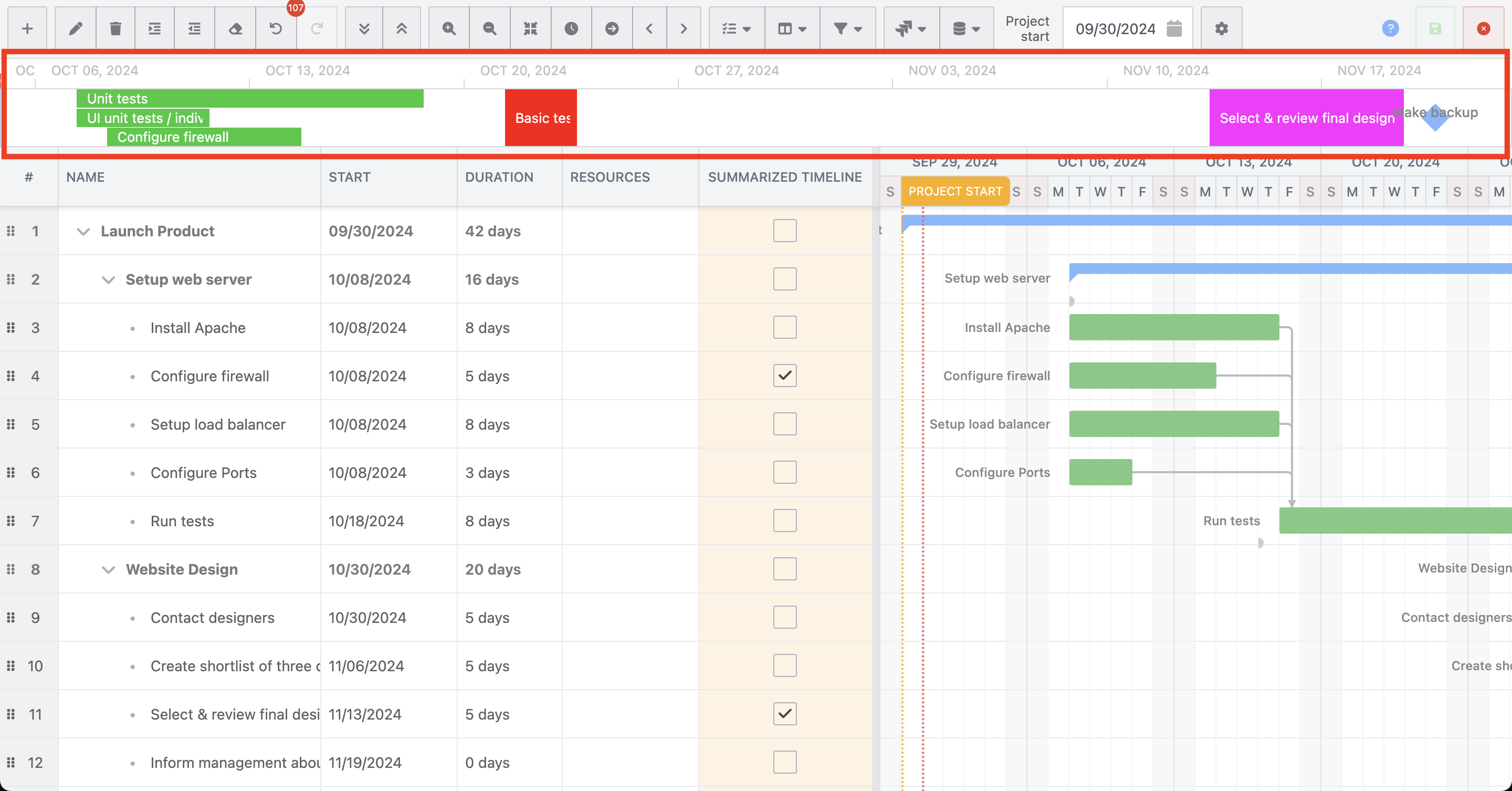
Picture a PM running a website relaunch with 140 Jira-linked tasks tracked in Confluence. Before a board update, she marks six items as summarized: design freeze, content complete, QA sign-off, staging review, go-live, and post-launch monitoring.
The board opens the same page she and her team use daily and sees a clean six-milestone timeline. Nobody has to build a separate summary slide, and nobody has to explain why the “real” plan looks more complicated than the one they were shown last week — it’s the same page, just a different view of it.
It’s a small setting, but it changes what “sharing your plan” means: one Confluence page can serve the team doing the work and the stakeholders checking on it, instead of a full plan for one audience and a stale export for the other.
Setup steps, including how to select which tasks appear, are in the docs: Summarized timeline.
Not using Gantt Chart Planner for Confluence yet? Start a 30-day free trial to see how it works for your team.