





News

Sep 14, 2026 • 6 min read
In This Blog
Confluence pages don’t stay simple for long.
What starts as a documentation space ends up holding budgets, sprint reports, hiring plans, and the numbers behind every decision a team makes. And at some point, every one of those pages runs into the same wall: Confluence’s native tables can hold data, but they can’t calculate with it, discuss it in place, or help you make sense of it.
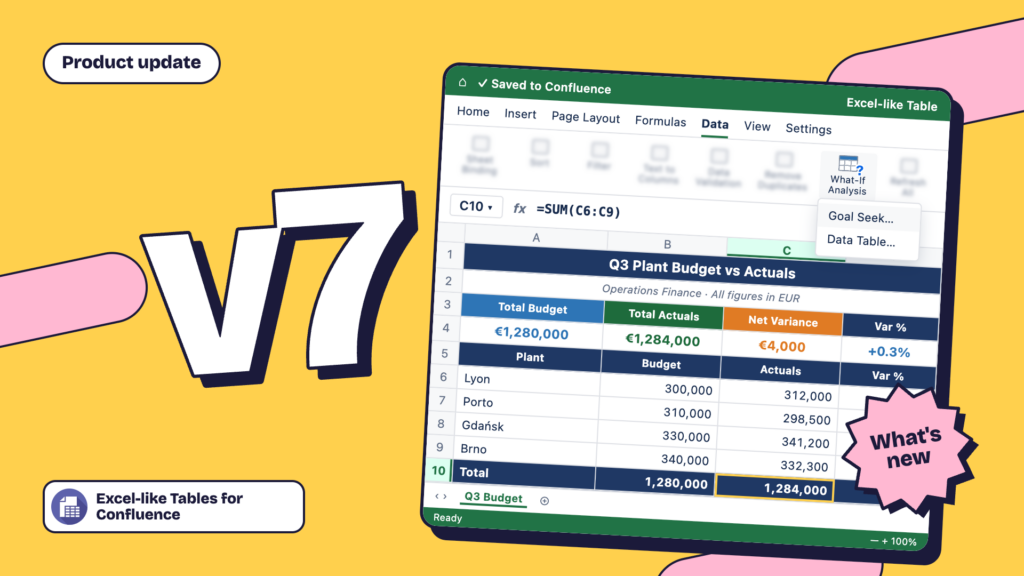
Excel-like Tables for Confluence v7 addresses all three of those gaps at once.
This release brings a major spreadsheet engine upgrade with What-If Analysis for solving and comparing numbers, Threaded Comments with @mentions for discussing data without leaving the page, and Excel-like Tables Assistant (Rovo-powered AI assistant), built to summarize and analyze the tables you’ve already built.
Here’s what’s new, and what it means for how your team works in Confluence.
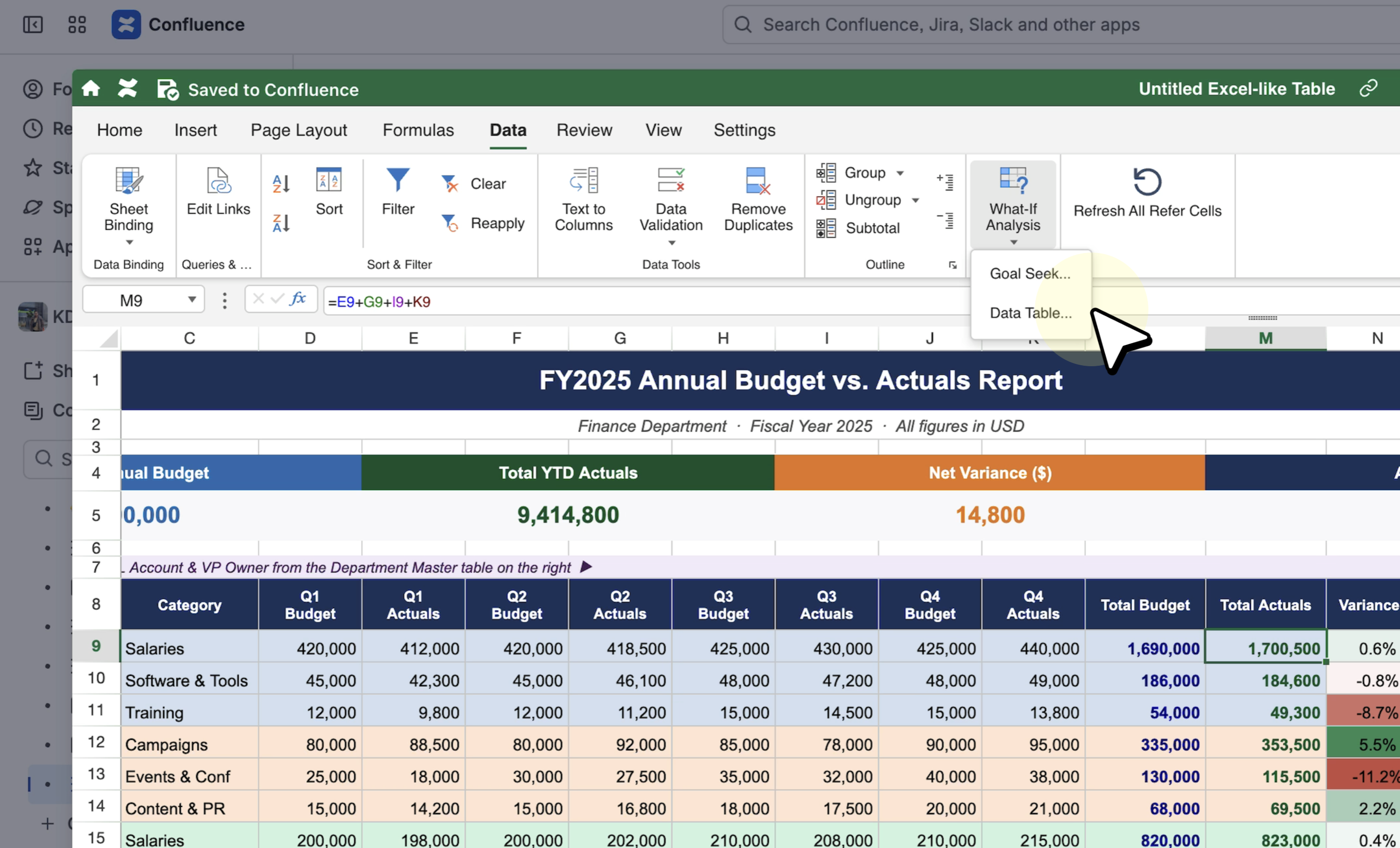
Real calculation power. The upgraded spreadsheet engine brings 450+ Excel-style formulas and, new in this release, native What-If Analysis: Goal Seek to solve for the number you need, and Data Table to see outcomes across a range — now running directly in your Confluence page.
Collaboration that doesn’t break your flow. Threaded Comments with @mentions let your team discuss a specific number without screenshotting it into Slack or waiting for someone else to finish editing.
AI that stays inside your Atlassian environment. Excel-like Tables Assistant (Rovo-powered AI agent) operates within the same platform your Confluence and Jira data already lives in.
Three things get faster with v7.
Questions that used to take a day get answered in the meeting where they’re asked, because the answer comes from Goal Seek or a Data Table already on the page instead of a spreadsheet someone has to go find. Conversations about a specific number stop happening in Slack or over someone’s shoulder, because they can happen right on the cell. And the write-up you’d normally spend an hour producing by hand — the summary paragraph nobody enjoys writing — can come from asking instead of typing.
Planning conversations often start backward.
Someone needs to know how much to cut to hit a $65,000 total, or wants to see the outcome at five different levels side by side — and until now, answering meant pulling the real model out of whatever spreadsheet it actually lived in, because a Confluence table could hold numbers but couldn’t calculate with them, forward or backward.
What-If Analysis, powered by Excel-like Table’s upgraded spreadsheet engine, brings two focused tools to Excel-like Tables tables.
It also pairs naturally with the Excerpt Macro.
Solve or model something once, then excerpt the live result onto a dashboard or leadership review page. It stays current everywhere it’s referenced, not just where it was built — so a budget review or a hiring plan discussion can pull from the same live source instead of a static copy.
Where to go deeper:
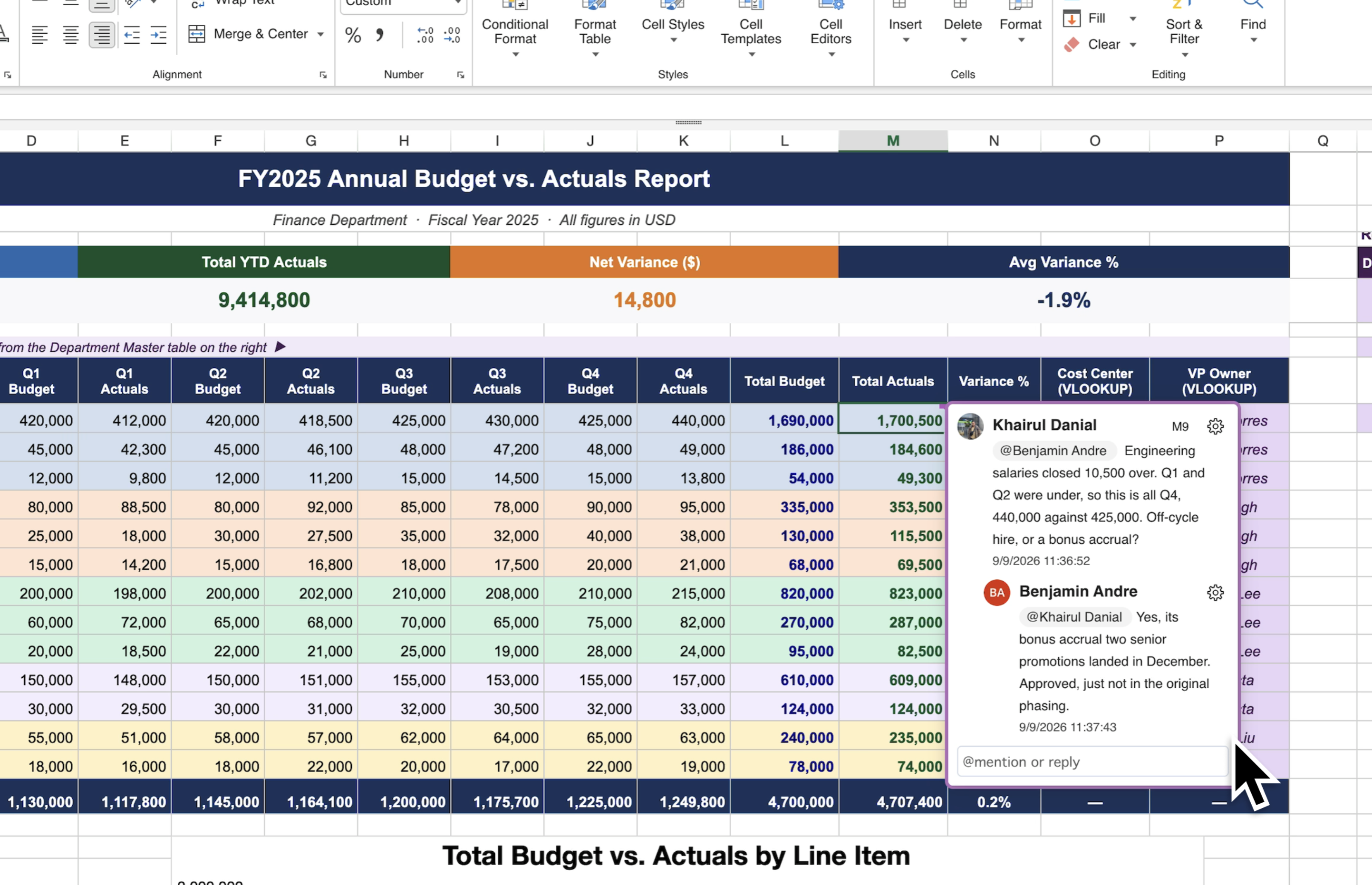
A question about one cell in a shared table usually turns into a screenshot pasted into Slack, or a comment left on the whole page that doesn’t say which number it’s actually about. Either way, the conversation ends up happening somewhere other than the data it’s about.
Threaded Comments with @mentions keeps that conversation attached to the exact cell or range it’s about. Leave a comment directly on a number, tag a teammate to pull them in, and keep editing the rest of the sheet while they reply.
It’s the same real-time collaboration Excel-like Tables already supports, extended into an actual conversation instead of just shared editing.
Where to go deeper:
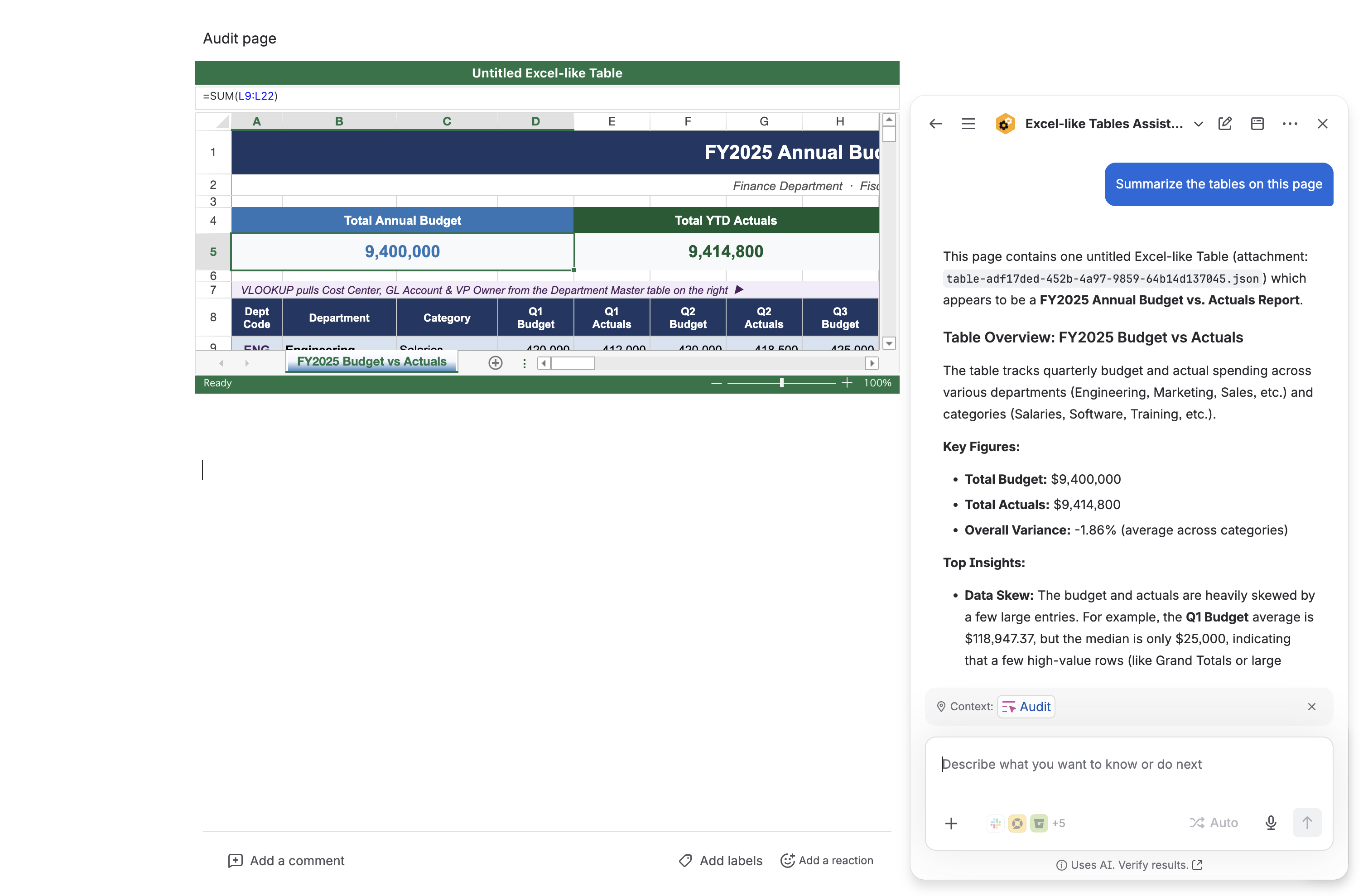
Writing the summary paragraph for a monthly report usually means scanning three or four tables by hand, doing the analysis yourself, and typing up what you found — work that has nothing to do with the numbers themselves and everything to do with turning them into a sentence someone else can read.
Excel-like Tables Assistant, Excel-like Tables’s first AI capability, reads across one or multiple Excel-like Tables tables on the same Confluence page and generates a written summary: trends, standout figures, plain-language takeaways, that you can insert directly into the page instead of writing from scratch.
Ask it to summarize what changed since last month across your KPI tables, or to flag anything that stands out in a budget model, and it hands back a paragraph ready to drop into your documentation.
Where to go deeper:
Excel-like Tables for Confluence runs as a Forge app, is backed by Ricksoft’s Platinum Atlassian Marketplace Partner status and Cloud Fortified badge, and Ricksoft, Inc., is ISO/IEC 27001:2022 certified company-wide, trusted by 8,000+ teams across the Atlassian ecosystem.
Excel-like Tables isn’t trying to replace Confluence’s native tables; Use native tables for simple reference lists, and Excel-like Tables for anything that needs to calculate, get discussed in place, or summarize itself.
If you want the fuller comparison, we’ve laid it out directly: Excel-like Tables for Confluence vs. Native Confluence Tables.
The fastest way to understand what v7 changes is to see it against a real scenario. We’ve written up both, with more on the way for finance and business teams specifically:
Try Excel-like Tables for Confluence or schedule a demo to see v7 against your own data.
Already using Excel-like Tables? v7 is available now; No migration steps required to start using What-If Analysis or Threaded Comments. Excel-like Tables Assistant (Rovo-powered AI agent) may require enabling in your instance’s admin settings; see the documentation above for setup.
Have feedback or a feature request? Submit it here (we read every one).