Data & Reporting

Oct 30, 2026 • 7 min read
In This Blog
Most planning questions arrive backward.
Finance says the renewal has to come in under $100,000. Someone has to work out what that means: fewer seats, a bigger discount, or both. The usual method is to change one number, check the total, and change it again until it lands.
Excel-like Tables for Confluence has two What-If Analysis tools that replace that loop. Goal Seek starts from the result you need and finds the input that gets you there. Data Table shows the result across a whole range of inputs at once, so you can see where the line is.
This guide walks through both on one example: a software renewal that is $20,000 over budget. You’ll set up the table, solve for the answer, check it against the range, and avoid the mistakes that produce a confident wrong number.
This guide is for you if you build budgets, forecasts, or capacity plans in Confluence and keep getting asked “what would it take to…?” If you need the exact dialog fields and a downloadable sample file, the What-If Analysis documentation covers those step by step.
What-If Analysis can only change cells that hold a typed value, and it can only solve for results that are calculated from those cells. Most failed attempts trace back to the table, not the tool.
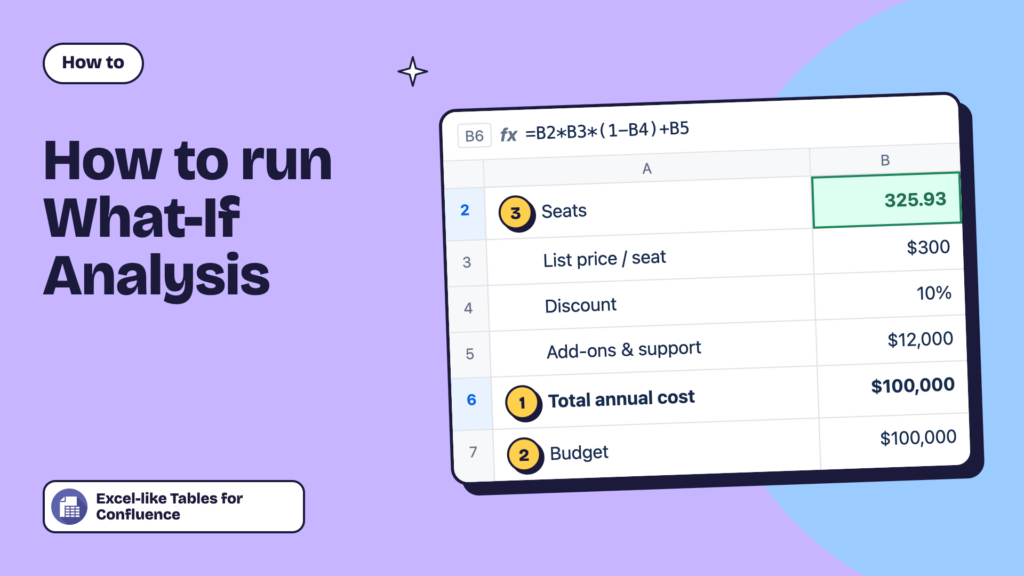
Here is the renewal model. Every assumption sits in its own cell, and the total is a formula that references them.
| Cell | Label | Value |
|---|---|---|
| B2 | Seats | 400 |
| B3 | List price per seat, per year | $300 |
| B4 | Negotiated discount | 10% |
| B5 | Add-ons and support (fixed) | $12,000 |
| B6 | Total annual cost | =B2*B3*(1-B4)+B5 → $120,000 |
| B7 | Budget | $100,000 |
Three habits make a table like this ready for What-If Analysis:
=B2*300*0.9 buries the price and the discount where no tool can reach them.| You’re asking | Use | What you get back |
|---|---|---|
| “What does this input need to be to hit this result?” | Goal Seek | One value, written into your input cell |
| “How does the result change as this input moves?” | Data Table | A grid of results you can scan |
| “Which of two inputs should we move, and by how much?” | Data Table with both inputs | A two-way grid (see the docs example) |
In practice you’ll often use both: Goal Seek for the exact number, Data Table to see whether that number sits in a reasonable place.
The question: if we keep the 10% discount, how many seats can we afford for $100,000?
Open the table in the full-featured editor, go to Data > What-If Analysis > Goal Seek, and fill in three fields:
B6, the total annual cost. This must be the formula cell.100000. Type the number itself, not a reference to the budget cell.B2, seats. This must be a typed value, not a formula.Goal Seek returns 325.93 seats.
[Screenshot: Goal Seek dialog filled in; result showing 325.93 in B2 and $100,000 in B6]
You can’t buy 0.93 of a seat, so round, and round in the direction that keeps you inside the target. Here that means down: 325 seats costs $99,750. Rounding up to 326 puts you $20 over budget.
The same rule applies to headcount, units, trips, or anything else you count. For a cost you’re cutting, round toward the larger cut. For a revenue target, round toward more sales.
Cutting 75 seats is one answer. Procurement may prefer another: keep all 400 seats and negotiate a bigger discount.
Run Goal Seek again with the same Set cell and To value, but change By changing cell to B4, the discount. Goal Seek returns 26.67%.
Now the conversation has two concrete options: drop to 325 seats, or get the vendor from 10% to roughly 27%. Before you run the second Goal Seek, put B2 back to 400. Goal Seek writes its answer into the input cell, so the first result is still sitting there.
Goal Seek told you the vendor needs to reach 26.67%. Before the negotiation, it helps to see what every realistic discount does to the total, and how far over or under budget each one leaves you.
A one-input Data Table does this in a single pass.
D3:D9 = 0%, 5%, 10% … 30%.E2 = =B6. Add a second result beside it if it helps: F2 = =B6-B7 for over/under budget.D2:F9.B4, the discount, and leave Row input cell empty, because your test values run down a column.[Screenshot: completed Data Table with the over-budget rows shaded]
| Discount | Total annual cost | vs. $100,000 budget |
|---|---|---|
| 0% | $132,000 | +$32,000 |
| 5% | $126,000 | +$26,000 |
| 10% | $120,000 | +$20,000 |
| 15% | $114,000 | +$14,000 |
| 20% | $108,000 | +$8,000 |
| 25% | $102,000 | +$2,000 |
| 30% | $96,000 | −$4,000 |
The grid shows something Goal Seek alone doesn’t: every 5 points of discount is worth $6,000, and 25% still misses by $2,000. That gives procurement an opening ask (30%) and a floor (about 27%), and tells finance a 25% deal still needs a small seat cut.
Two layout tips:
Changing a cell that holds a formula. If seats were calculated from headcount (=Headcount*1.1), Goal Seek can’t change B2. Point it at the typed-in assumption underneath instead, here the headcount cell.
Solving for a result that doesn’t depend on the input. If the total was copied in as a value, or the formula skips the cell you’re changing, Goal Seek has nothing to work with. Click the result cell and check that its formula actually references your input.
Forgetting that Goal Seek keeps its answer. After a Goal Seek, the input cell holds the new value, and every formula that uses it has moved too. Write the answer down, then put the original value back before you run the next question.
Treating one answer as the only answer. Goal Seek moves one input. Real decisions usually have two or three levers, as the seats-versus-discount example shows. Run it once per lever, then use a Data Table to compare.
Using the raw decimal. 325.93 seats and 26.67% are math, not plans. Round to something you can buy, hire, or negotiate, in the direction that keeps you inside the target.
A what-if answer travels fast, usually without the table behind it. A quick check keeps it honest:
If leadership needs the result on a summary page, an Excerpt macro shows just the grid or the total while you keep working on the source. The docs cover that setup.
Pick a question you’ve been answering by trial and error this quarter: a budget cap, a hiring limit, a price you need to hit. Set up the inputs in their own cells, run Goal Seek, then check it with a Data Table.
Already using Excel-like Tables for Confluence? Open any table in the full-featured editor and go to Data > What-If Analysis.
New to Excel-like Tables for Confluence? Try it free for 30 days on the Atlassian Marketplace.